9 Easy Ways to Add a Watermark to a PDF Without Adobe
Most people do not realize how annoying PDF editing feels until they need to do something that sounds simple.
Add a logo to a proposal. Place a “Draft” mark across a report. Put branding on a downloadable guide before uploading it online.
The task itself usually takes less than a minute. The frustrating part is often the software around it.
For years, Adobe Acrobat was treated as the default answer for almost everything involving PDFs. The problem is that many users never needed software that large or expensive just to place a watermark on a file. A lot of people only handle PDFs occasionally, and even professionals increasingly prefer faster browser-based workflows instead of traditional desktop programs.
That shift completely changed the market. Now there are dozens of tools that let users watermark PDFs directly online, often without downloads or complicated setup. Some focus on speed. Others work better for branding, mobile editing, or office workflows.
The best ones all have one thing in common: they make the process feel smaller than it used to.
What actually makes watermarking easy?
People often think “easy” means fewer features. That is not always true.
A good watermark editor can still offer customization while keeping the workflow clear enough that users do not have to stop and figure things out every few minutes.
The tools people usually keep using tend to offer:
- Fast uploads
- Clean interfaces
- Simple placement controls
- Reliable exports
- Logo and text support
- Mobile compatibility
- Minimal setup
The experience matters more than many companies realize.
There is a big difference between a tool that technically includes watermarking and one that actually makes the process convenient.
1. Watermarkly
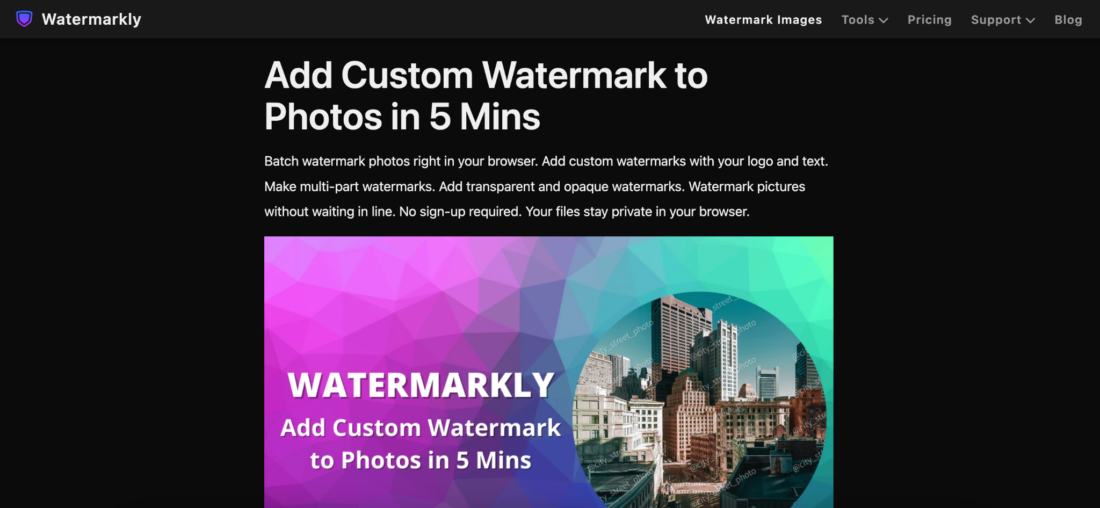
Watermarkly feels designed around the idea that watermarking should not take long.
That sounds obvious, though many PDF editors still make small edits feel unnecessarily complicated. You open the software and immediately see dozens of unrelated tools, settings, tabs, and export options before even touching the document.
Watermarkly avoids most of that.
The workflow stays focused. Upload the PDF, choose a watermark type, adjust the placement, and export the file.
The editor supports:
- Text watermarks
- Logo overlays
- Opacity adjustments
- Flexible positioning
- Rotation controls
- Font customization
- Repeating watermark patterns
One thing that stands out quickly is how visual the editing feels. Instead of typing values into settings panels, users move the watermark directly on the page and immediately see how it looks.
That makes a difference for people who rarely edit PDFs.
Watermarkly also works smoothly across desktop browsers, tablets, and phones. Mobile workflows matter more now because documents constantly move between devices during the day.
The platform works especially well for things like:
- Client proposals
- Educational materials
- Downloadable products
- Internal reports
- Worksheets
- Branded PDFs
The free version adds Watermarkly branding to exported files, while the mobile app allows limited watermark-free exports after watching an ad.
2. Use iLovePDF for quick browser editing
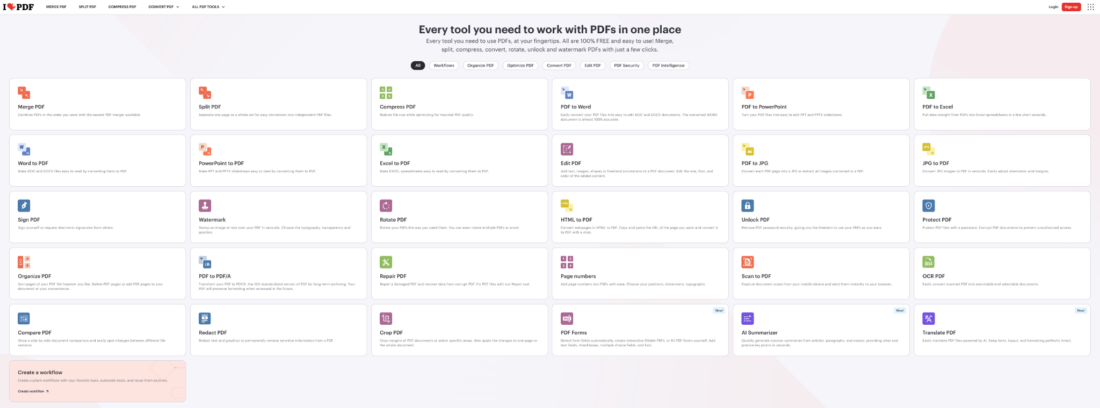
A lot of people already use iLovePDF for compressing or converting documents, so adding watermarks there feels natural.
The platform keeps the process extremely straightforward.
The typical workflow looks like this:
- Upload the file
- Add a text or image watermark
- Adjust the layout
- Download the PDF
iLovePDF includes:
- Text overlays
- Image watermarks
- Opacity controls
- Page selection tools
- Cloud integrations
The interface feels predictable, which honestly matters more than flashy design for many users.
Nobody wants surprises during a small editing task.
3. Add branded overlays with Canva
Canva is technically not a PDF watermarking platform. People still use it for that constantly.
Especially creators.
Someone designing an ebook, worksheet, presentation, or digital planner often already has the file inside Canva. Adding a logo or transparent text overlay there becomes part of the same workflow.
Canva works especially well for:
- Ebooks
- Templates
- Downloadable guides
- Presentations
- Worksheets
Compared to traditional PDF editors, the visual editing experience feels much smoother. Placement, typography, and branding controls are easier to manage because Canva thinks more like a design tool than document software.
The downside is speed. Once somebody starts processing large groups of PDFs, Canva becomes less practical.
4. Use Sejda when placement precision matters
Sejda feels more detailed than lightweight one-click PDF editors.
That usually becomes useful once documents start getting more complicated.
Reports, contracts, presentations, and multi-page layouts often need more careful watermark placement than simple casual edits.
Sejda includes:
- Flexible positioning
- Custom page ranges
- Text and image support
- Transparency controls
- Layered overlays
The interface stays cleaner than traditional desktop software, though it definitely leans more toward structured document editing than quick, minimal workflows.
People who work inside PDFs regularly tend to appreciate the additional control.
5. Use PDF Candy for occasional document tasks
PDF Candy feels less polished than some competitors, though many users continue returning to it because the workflow stays practical.
The watermark editor supports:
- Text watermarks
- Image overlays
- Rotation controls
- Opacity settings
- Size adjustments
The platform also handles smaller PDF tasks fairly well.
Things like:
- Splitting files
- Rearranging pages
- Compressing documents
- Converting formats
Not every tool needs a perfectly modern interface to remain useful.
Sometimes reliability matters more.
6. Use Smallpdf for lightweight editing
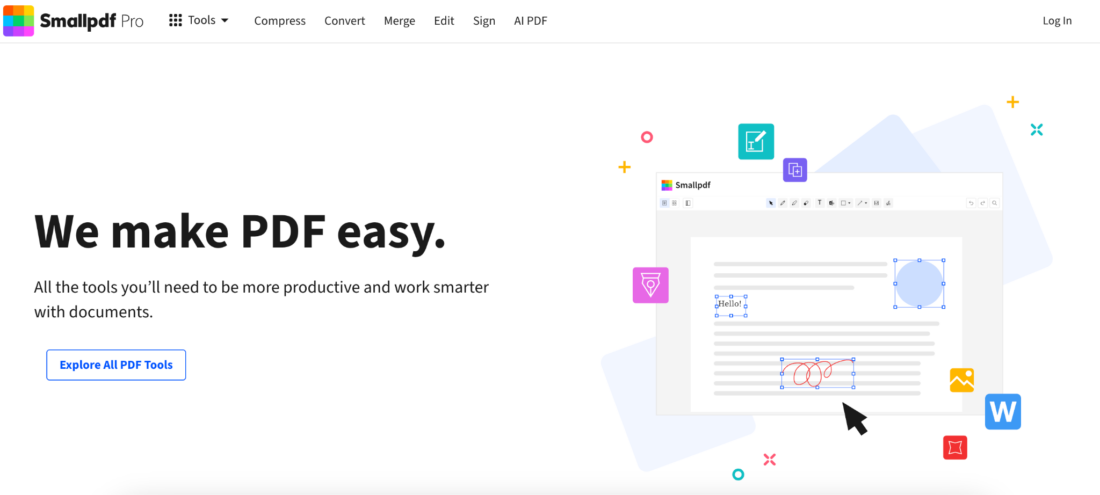
Smallpdf focuses heavily on usability.
That becomes obvious within the first few seconds after opening the editor. The layout feels clean without becoming empty or overly simplified.
The watermarking tool allows adjustments for:
- Placement
- Transparency
- Rotation
- Scaling
Smallpdf also connects with services like Dropbox and Google Drive, which helps people constantly moving files between devices.
The platform works especially well for users who only edit PDFs occasionally and want the shortest possible learning curve.
7. Use PDFgear for desktop and browser flexibility
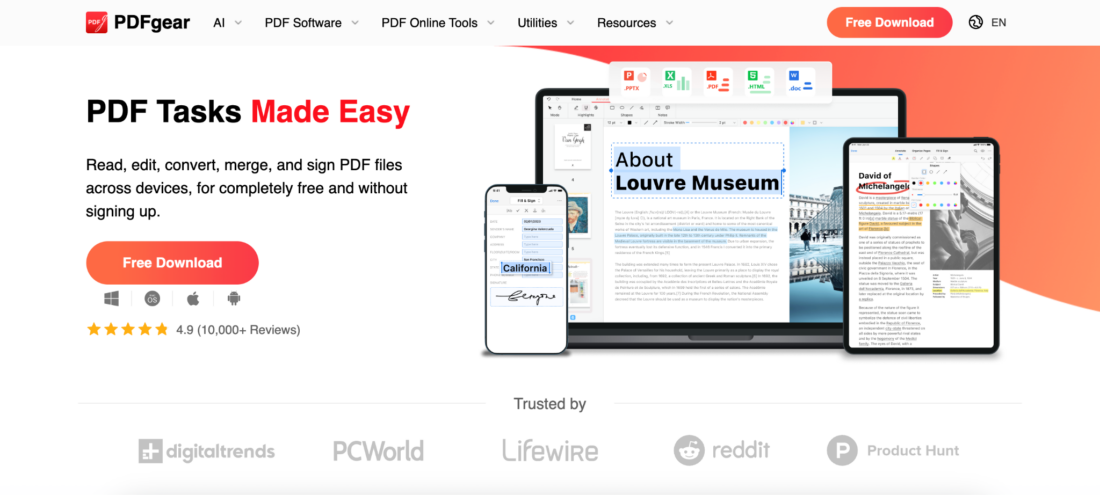
PDFgear became much more visible recently among users searching for free PDF software that still feels modern.
Unlike many browser-only editors, PDFgear also offers desktop applications.
Its watermarking features include:
- Logo insertion
- Text overlays
- Transparency controls
- Font settings
- Page organization tools
The overall experience leans slightly more toward office productivity than creator workflows, though the interface remains approachable for casual users, too.
For people moving between desktop editing and browser workflows, that flexibility can be useful.
8. Use AvePDF for quick edits without clutter
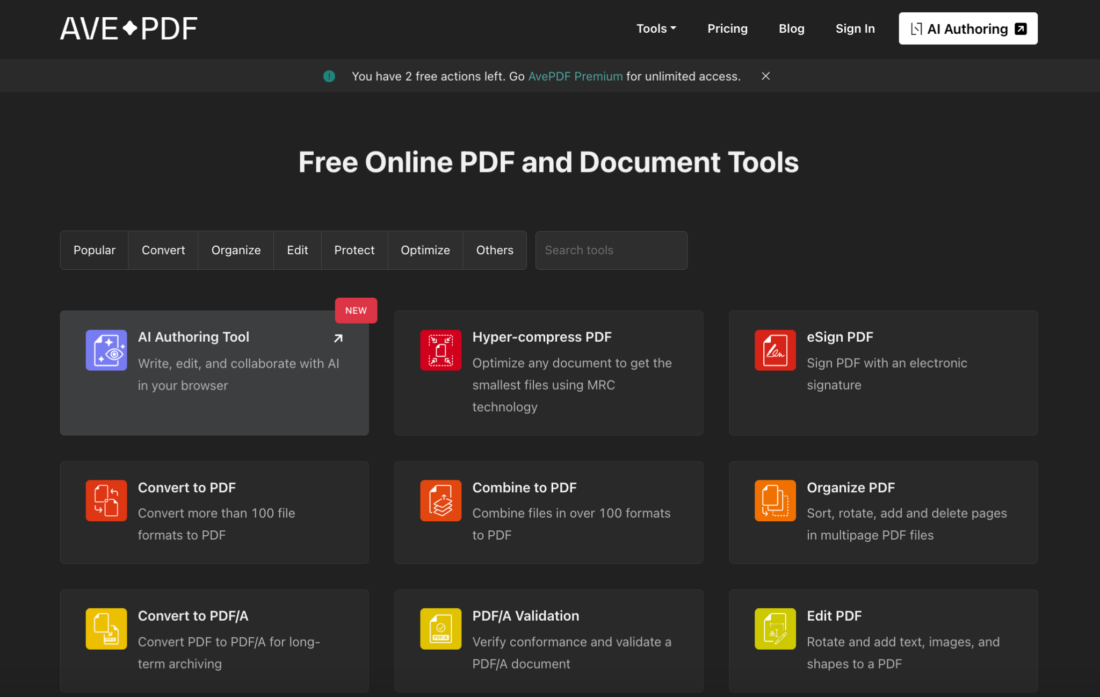
AvePDF is not as well-known as some larger PDF brands, though the workflow feels surprisingly smooth.
The interface stays lightweight and responsive, which helps when somebody simply wants to make a quick edit without distractions.
AvePDF includes:
- Drag and drop uploads
- Text watermarking
- Image overlays
- Transparency controls
- Positioning tools
Because the layout avoids clutter, even first-time users usually understand the workflow fairly quickly.
9. Use Soda PDF for larger document workflows
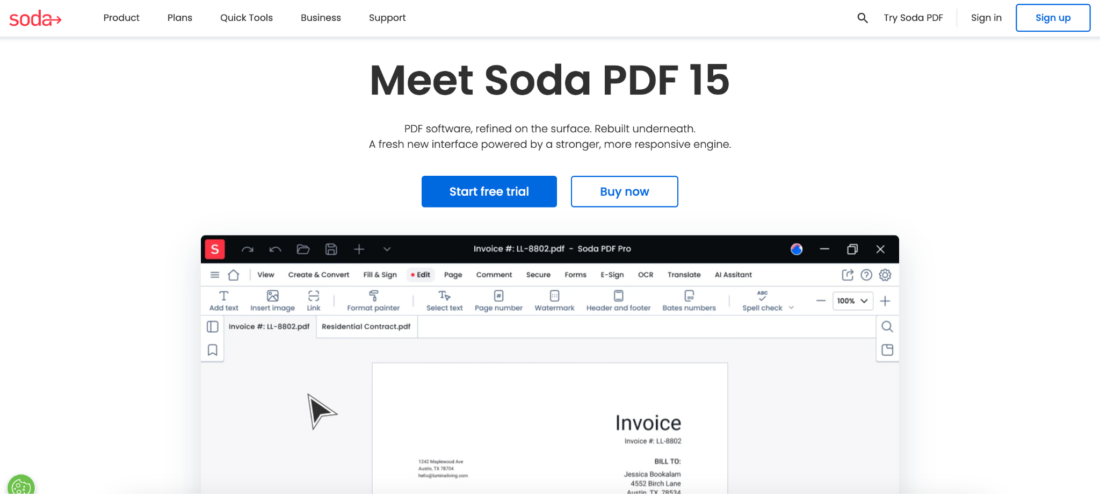
Soda PDF feels much closer to office software than minimalist browser editors.
That is not necessarily a bad thing.
Some users actually need the additional structure, especially businesses dealing with contracts, reports, and internal company documents regularly.
The platform includes:
- Watermark templates
- Page targeting
- Cloud integration
- Document organization tools
- Batch processing support
Compared to lightweight editors, Soda PDF definitely feels heavier. But for teams handling large numbers of PDFs consistently, the extra organization tools can make workflows easier long term.
Most watermark problems come from overdoing the design
A watermark should stay visible without taking over the document.
That balance is where many PDFs start falling apart.
Common mistakes include:
- Oversized logos
- Dark overlays
- Watermarks covering text
- Inconsistent placement
- Blurry transparent images
- Excessive branding
Subtle watermarks almost always look more professional than aggressive ones.
The goal is usually to label or protect the file without making the document frustrating to read.
Watermarks became more about branding than protection
A few years ago, most people associated watermarks mainly with copyright protection. That changed quite a bit.
Creators now use branded overlays to keep their name visible after PDFs start circulating online. Agencies watermark drafts before client approval. Businesses label internal files so documents stay identifiable when shared across teams. The watermark itself became part of the visual identity.
That shift changed what users expect from these tools. Placement matters more now. Typography matters more. The watermark has to feel like part of the document instead of something pasted on top afterward.
People usually keep using the tools that feel effortless
Most users looking for a way to watermark PDFs are not trying to build advanced publishing workflows. They simply want a practical tool that handles the task quickly without unnecessary friction.
That is one reason browser-based editors became so common. They fit naturally into modern workflows and remove many of the steps that used to make PDF editing feel frustrating.
Some platforms focus more on visual branding. Others lean toward productivity or structured office workflows. Watermarkly stands out because the process feels uncomplicated from the beginning, especially for freelancers, educators, creators, and small businesses that need something intuitive without opening heavyweight software.
At this point, convenience matters almost as much as features. People usually return to the tools that save time instead of creating extra work.